

What is YouDid?
YouDid turns your tasks into colorful visual boards you can read at a glance. Tap an item to mark it done, long-press to mark it as not done, and share boards with your team or family. This page will help you get the most out of the app.

Download now!
Create boards and easily track!
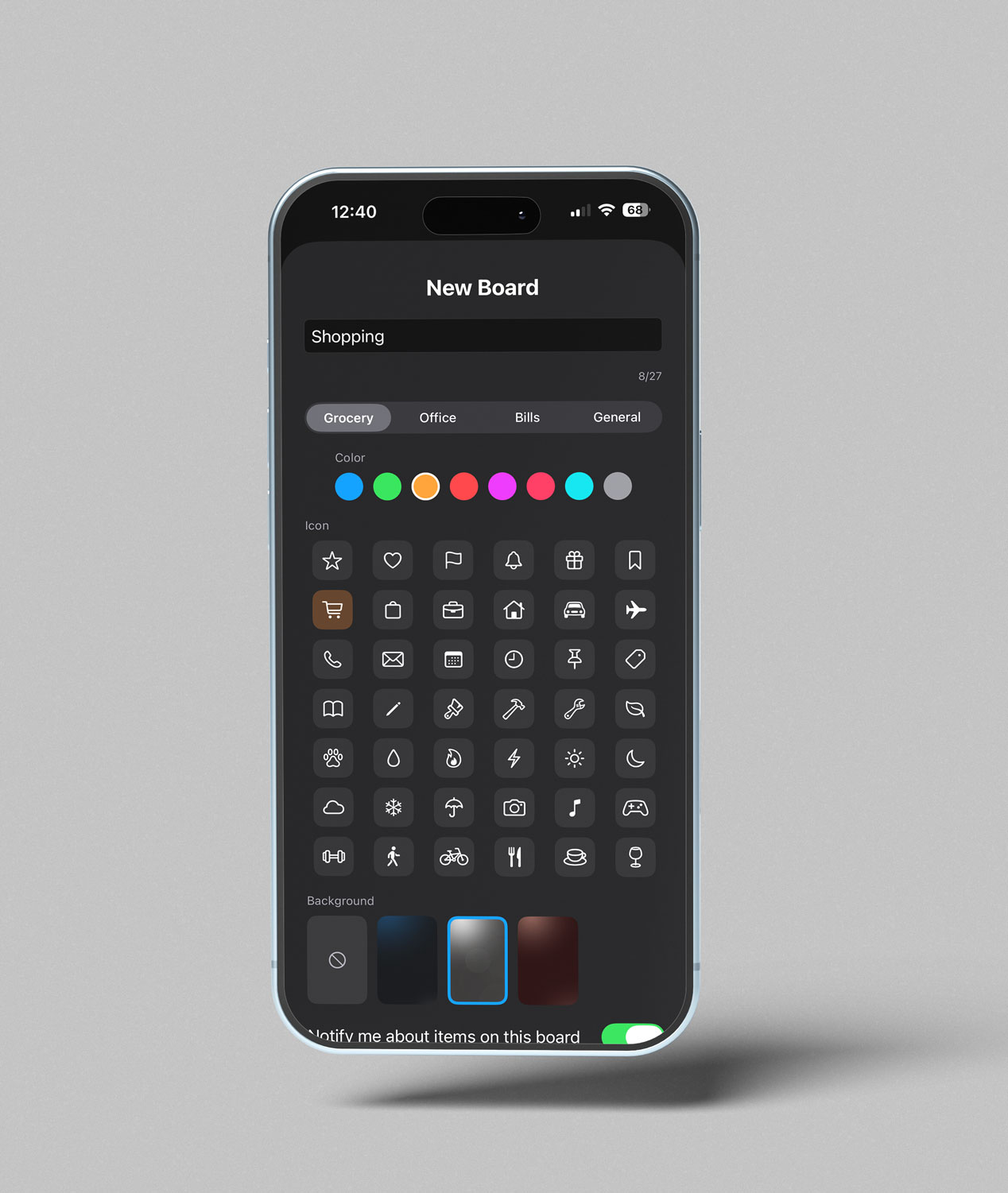
Create a Board
Tap the New tile at the bottom, give it a name, and pick a category, color, icon, and background.
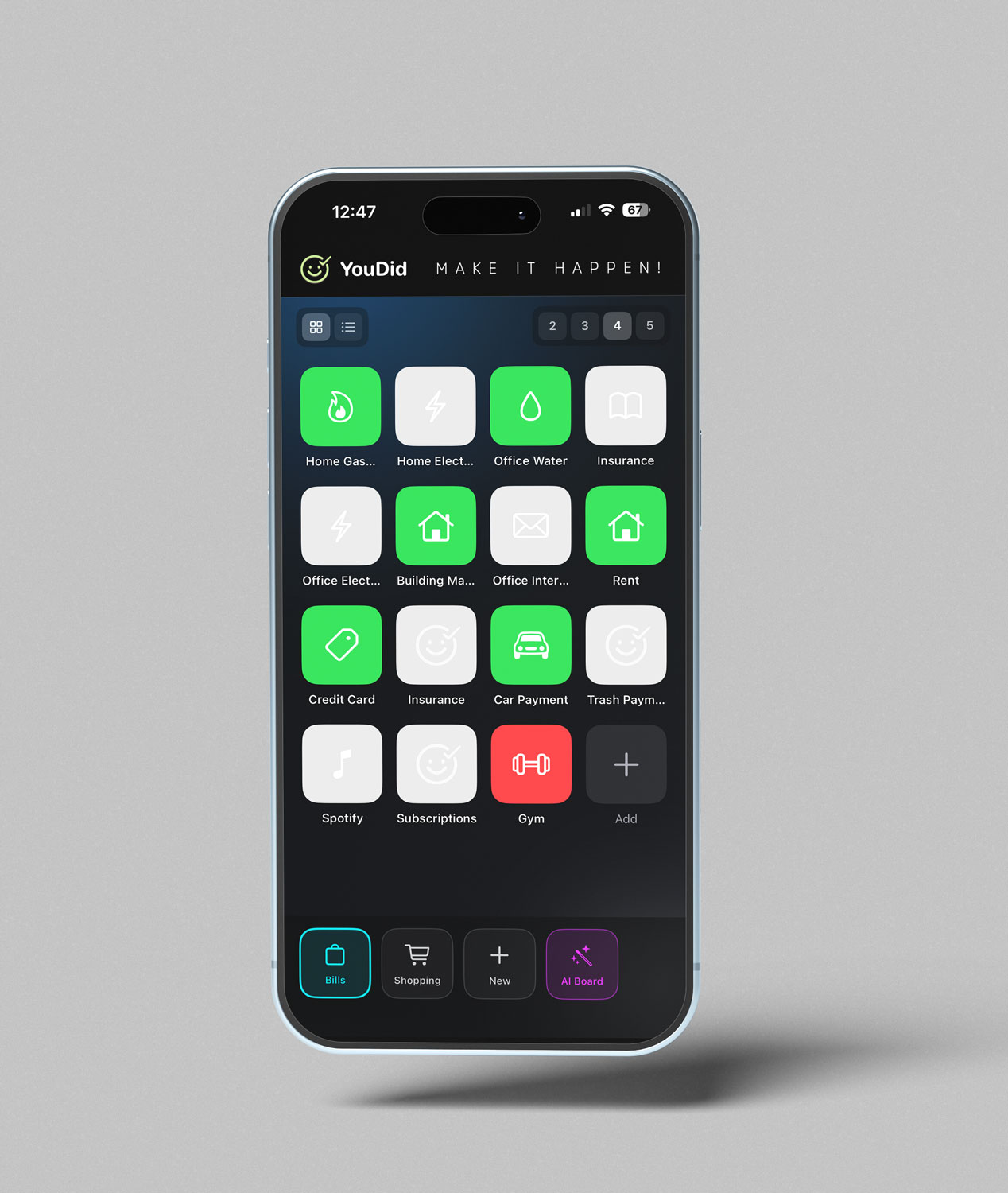
Add Items
Create a new board. Choose the background color, icon, and notification settings. Quickly add board elements, separating them with commas.
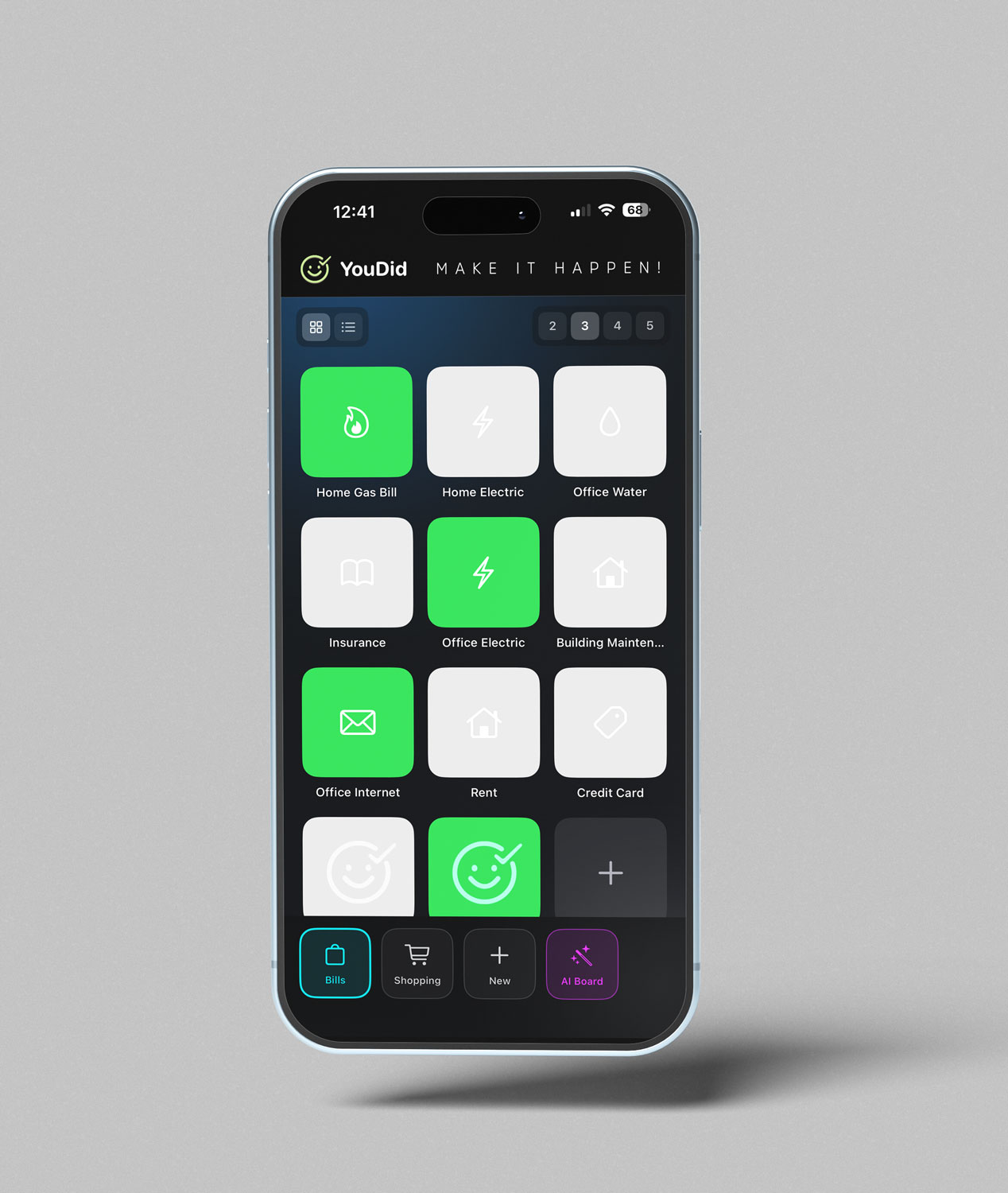
Track Status
Turn the items you’ve completed green with just one click. Leave the incomplete ones gray so they’re easy to spot.
Tap an item once to turn it green (done). Long-press to turn it red (couldn’t do it). Tap again to reset to gray (pending).
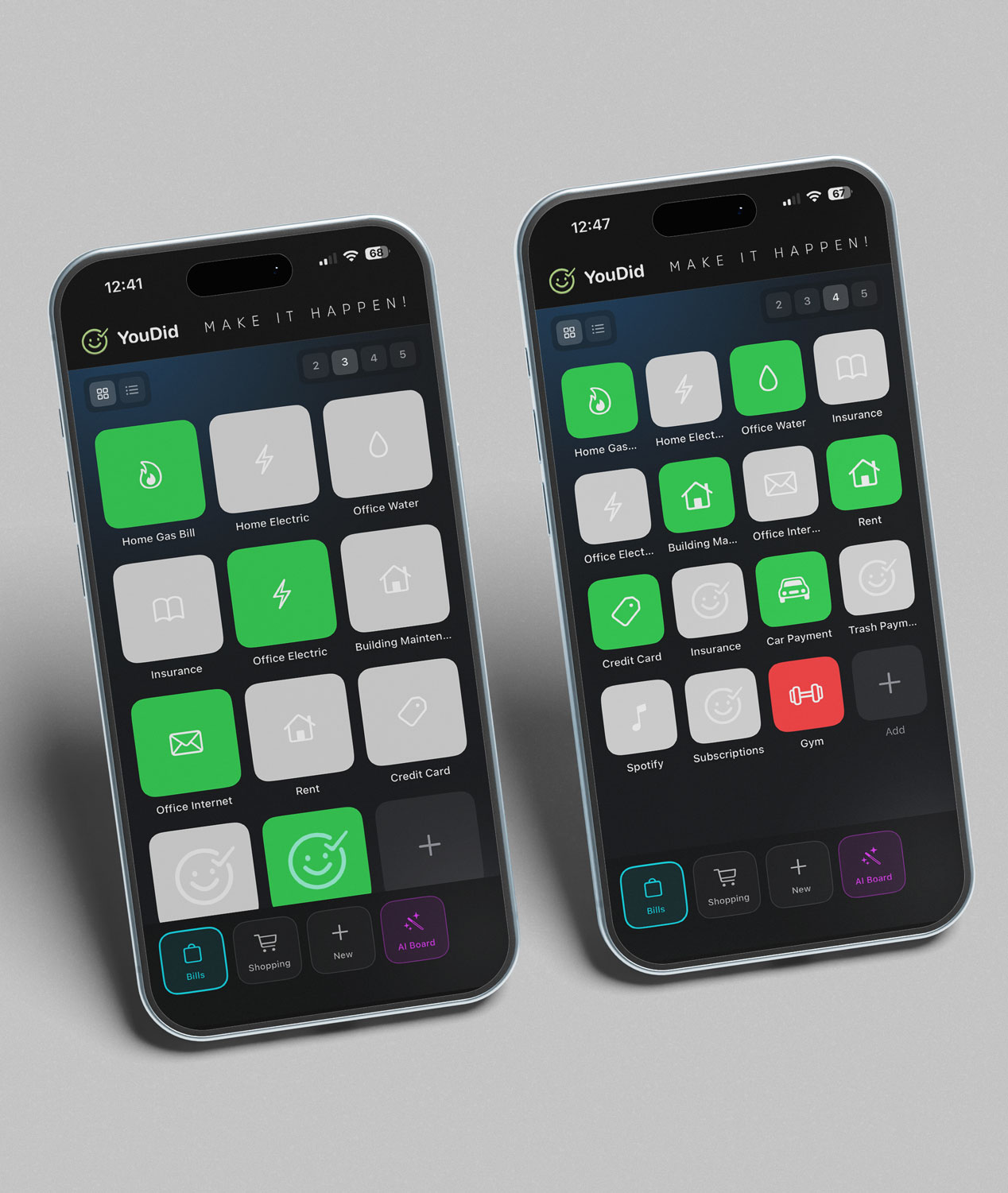
Display Large or Small
Display the items as a grid with 2, 3, 4, and 5 columns.
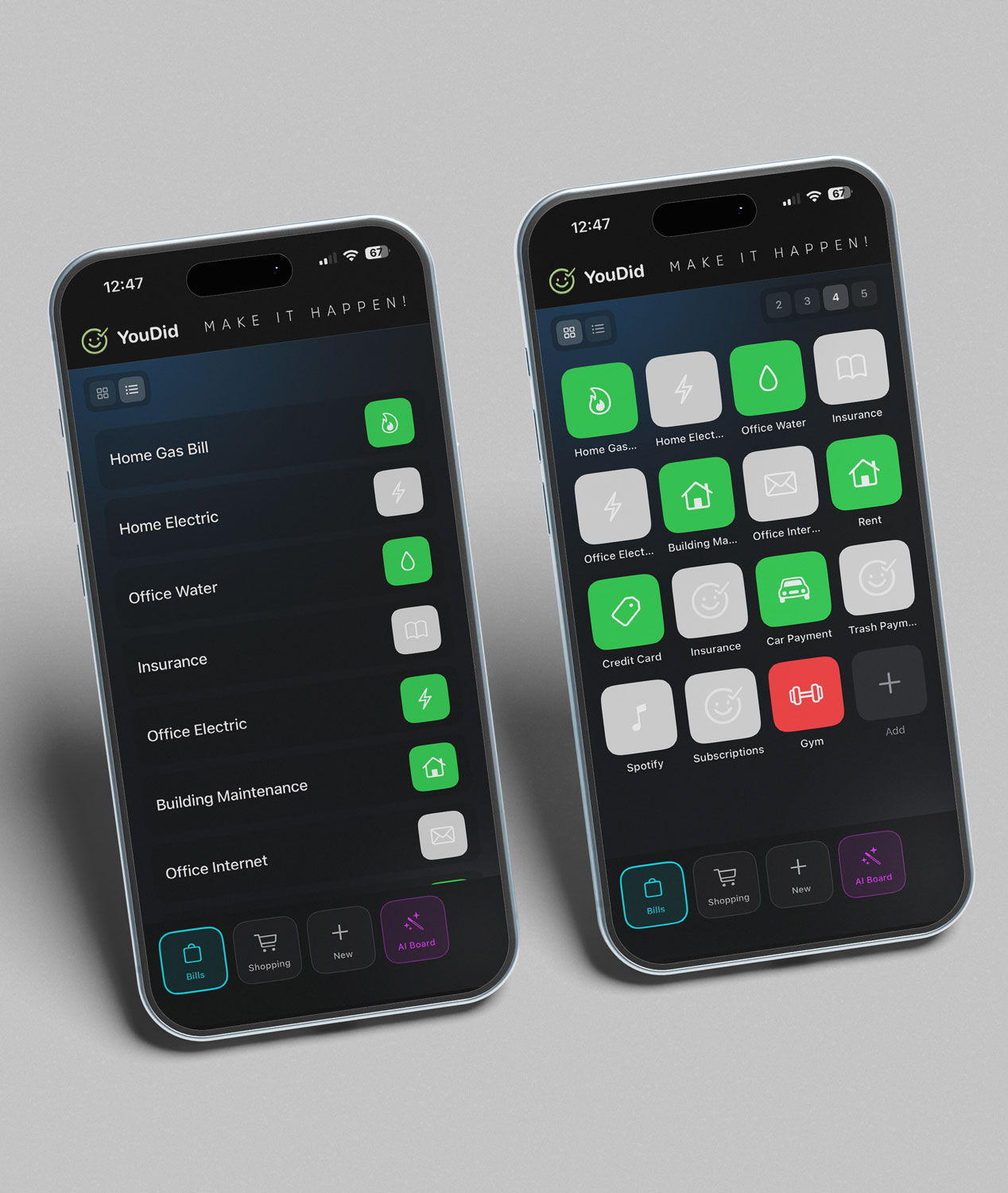
Display List or Grid
If you prefer, display it as a list instead of a grid.
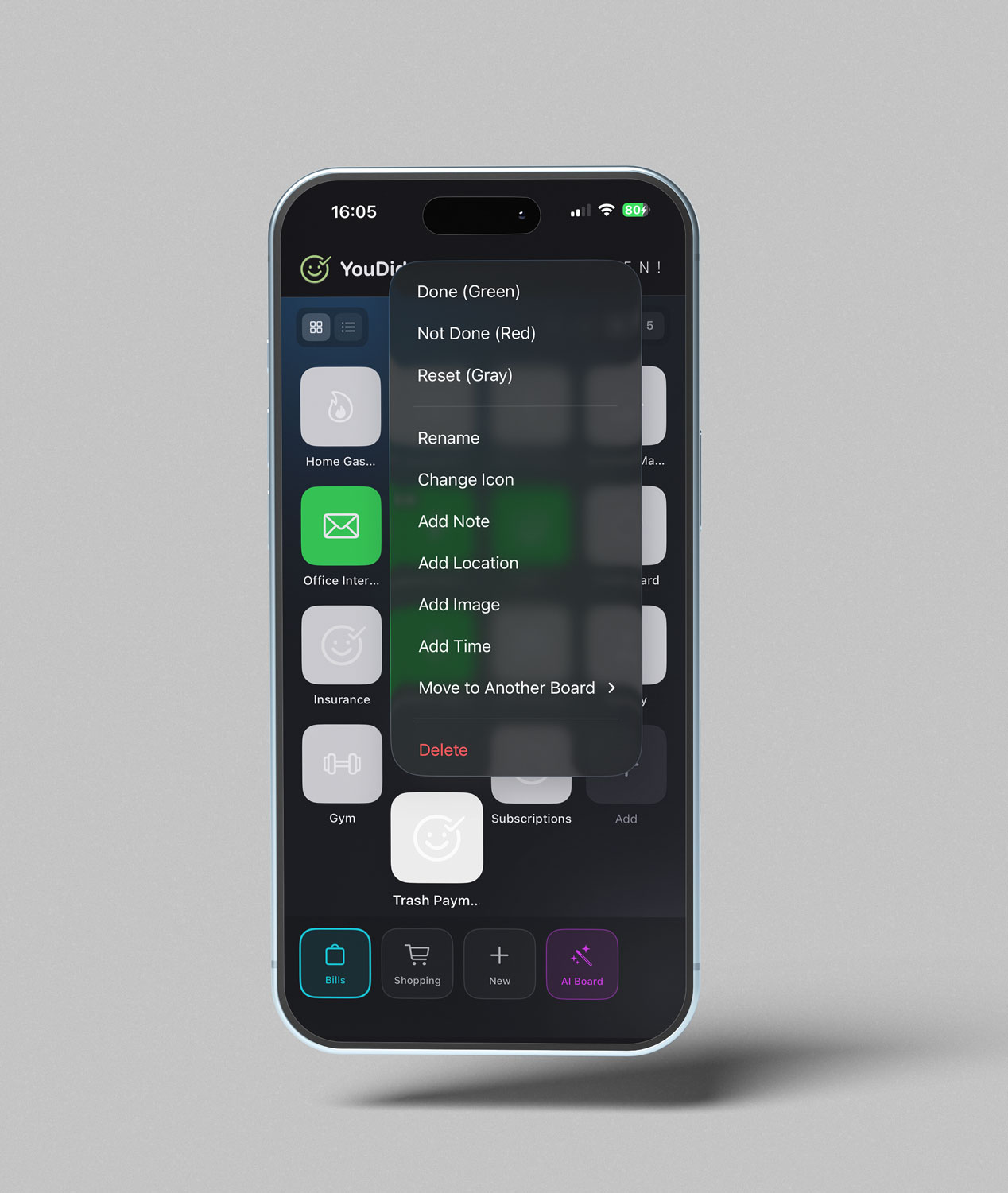
Item Notifications and Settings
Right-click to add image, location, icon, time and change settings to items. Move items to another clipboard or change their status colors.
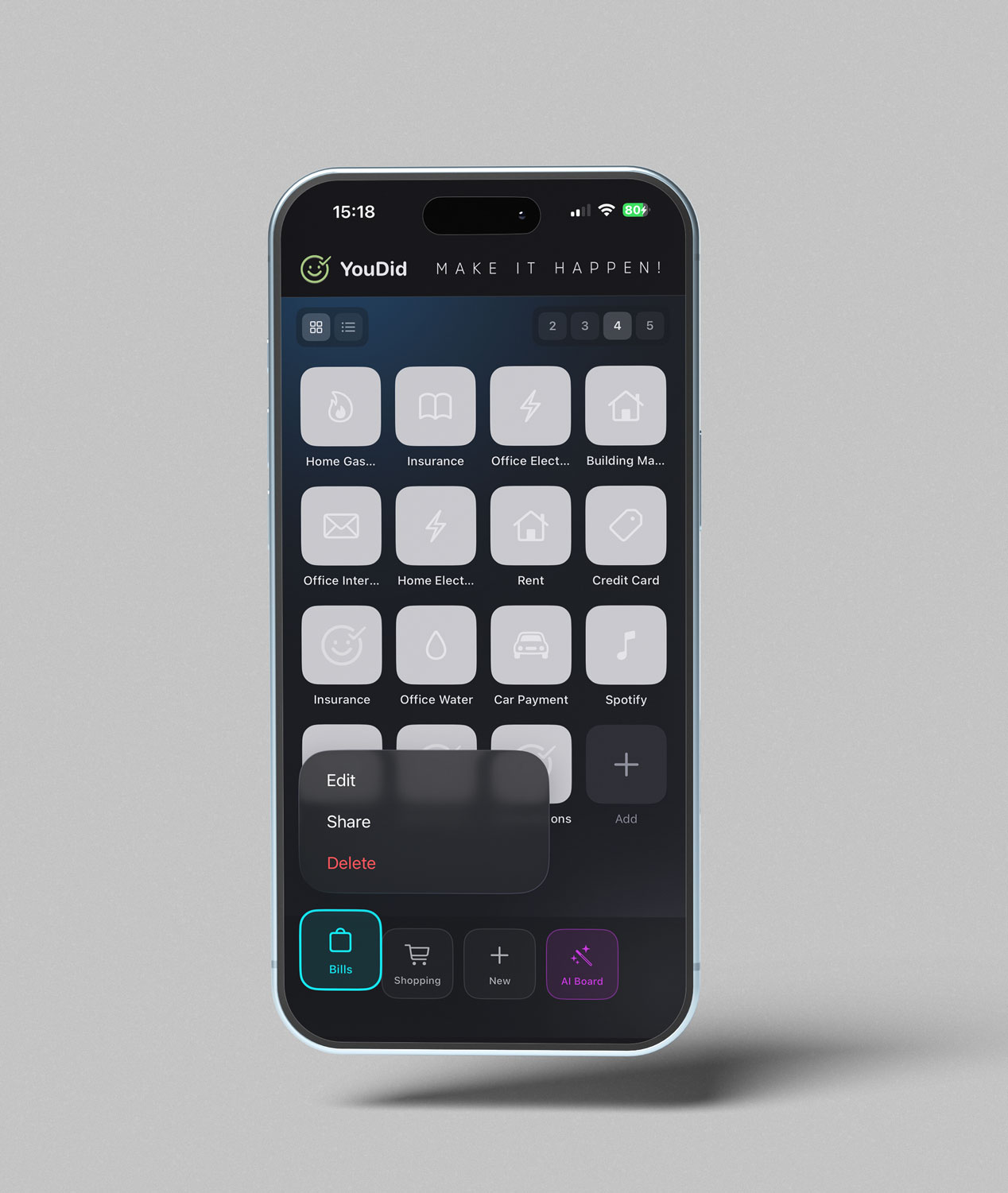
Share the Board
Share the board you created with your friend, edit it, or move it.
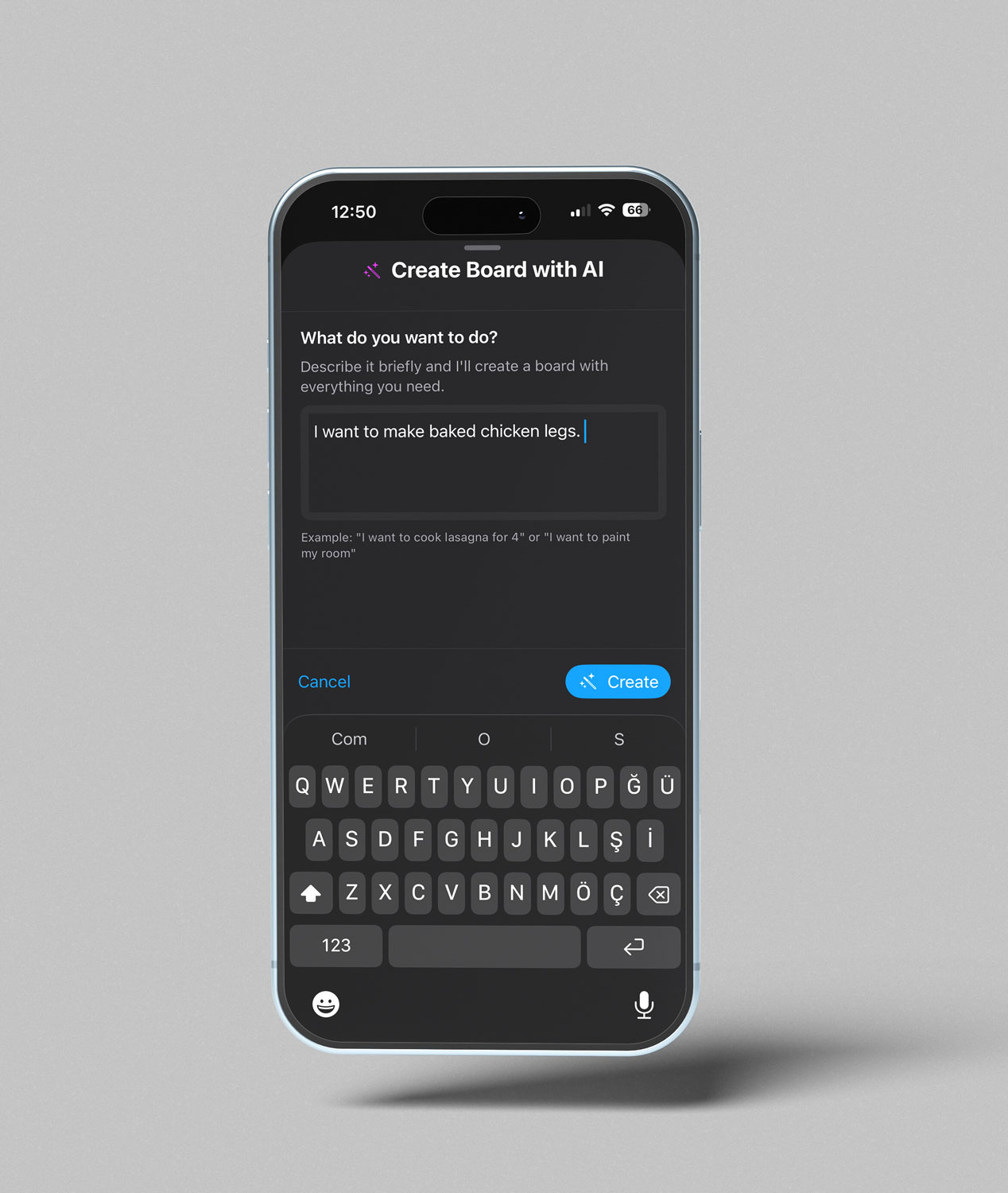
AI Board
Simply type what you want to do. Al will create a board containing a list of the necessary items.
You have the right to create 5 AI boards for free per day.
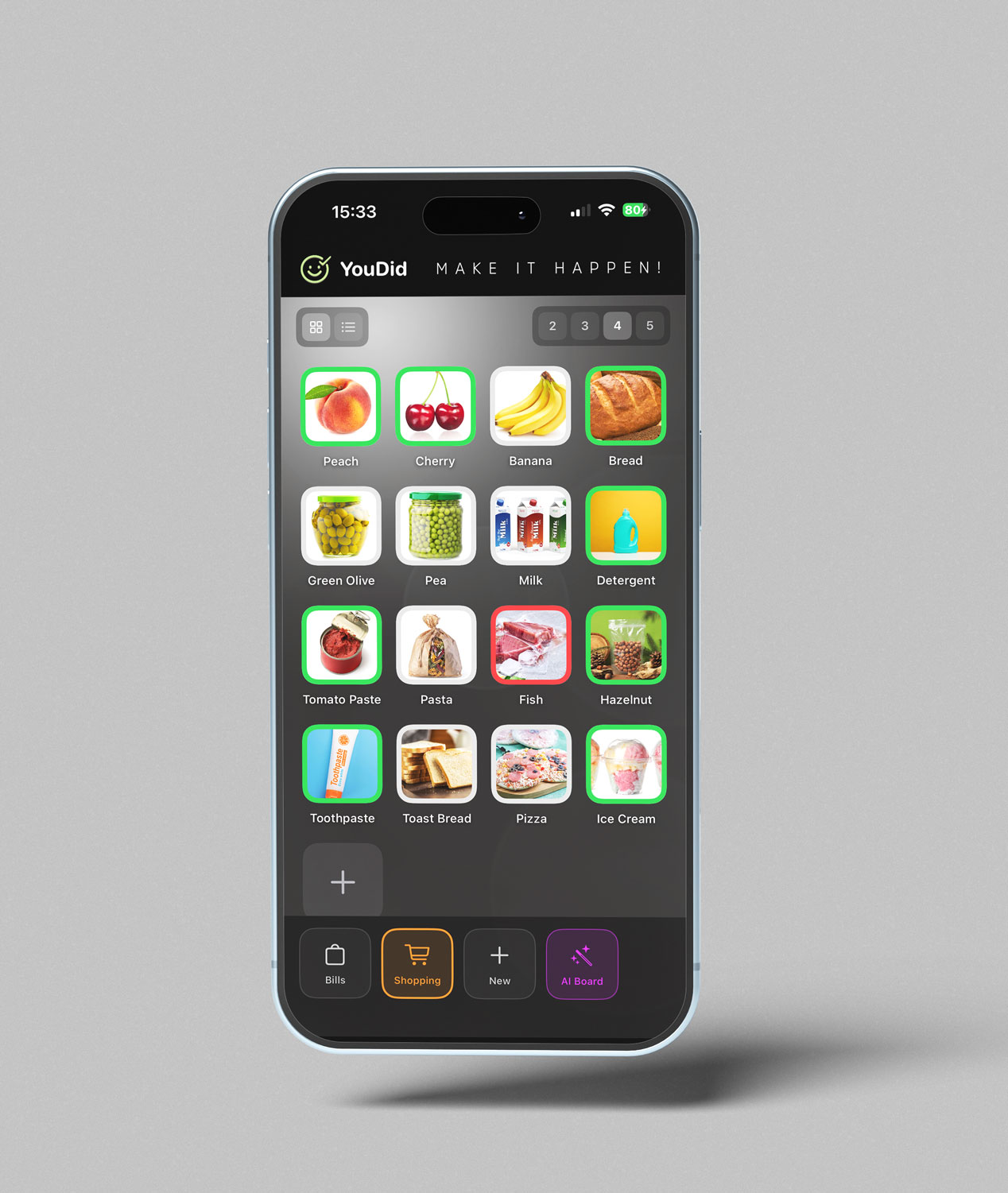
Icon or Image
You can create items using standard icons. For easier tracking, you can add different icons or images from your library.
Download now!
Create your boards and easily track them!
YouDid Support
Getting Started
- Create a board: Tap the New tile at the bottom, give it a name, and pick a category, color, icon, and background.
- Add items: Open a board, tap Add, then pick from the built-in catalog or type your own. Separate multiple items with commas to add them all at once.
- Track status: Tap an item once to turn it green (done). Long-press to turn it red (couldn’t do it). Tap again to reset to gray (pending).
- Switch views: Use the grid/list buttons at the top of a board, and adjust grid density from 2 to 5 columns.
Key Features
- Sharing: Send a board to someone with a single link. Both of you see the same board and updates sync instantly through iCloud.
- Reminders: Set a date and time on any item to get notified, or add a location to be reminded when you’re nearby.
- AI boards: Describe what you want to do and let YouDid generate a complete board with all the items you’ll need.
- Notes & photos: Attach a note or a photo to any item for extra detail.
- Everywhere: Native apps for iPhone, iPad, and Mac, all synced through your own iCloud account.
Frequently Asked Questions
Do I need an account?
No. YouDid uses your device and your own iCloud account. There’s no separate sign-up, username, or password.
Why isn’t sharing working?
Sharing requires you to be signed in to iCloud with iCloud Drive enabled. Check Settings > Apple Account > iCloud and make sure iCloud Drive is on.
Why didn’t I get a location reminder?
Location reminders need “Always” location permission. Check Settings > YouDid > Location and make sure access is granted.
Is my data private?
Yes. Your boards and items are stored on your device and in your own iCloud account. We don’t run a server that collects your data. See our privacy policy for details.
How does the AI feature work?
When you use “Create Board with AI,” the text you enter is sent to an AI service to generate a list of items. It’s only used to fulfill your request.
Contact Us
Need help or have a suggestion? We’d love to hear from you.
Email: info@muhammetgoktas.com
Website: YouDid App
Privacy Policy: Youdid Privacy Policy
© 2026 Muhammet Göktaş · YouDid — Make it happen!